How to Crop PDF Margins for Kindle, iPad, and Smaller Screens
Remove distracting scan borders and wide PDF margins so text makes better use of an e-reader or tablet display—without destroying the original content.
An academic paper can be brilliant and still unreadable on a small screen. Wide margins, scanner shadows, and decorative borders squeeze the actual text into a narrow strip while the display dutifully renders empty paper around it. On a phone or a six-inch e-reader, that strip can mean pinching, panning, and squinting through every paragraph.
Cropping fixes this—when it is done as a careful, reversible adjustment rather than a blind hack. This guide explains what a crop really changes, how to choose boundaries that survive contact with real documents, and where e-readers and tablets differ.
What cropping actually changes
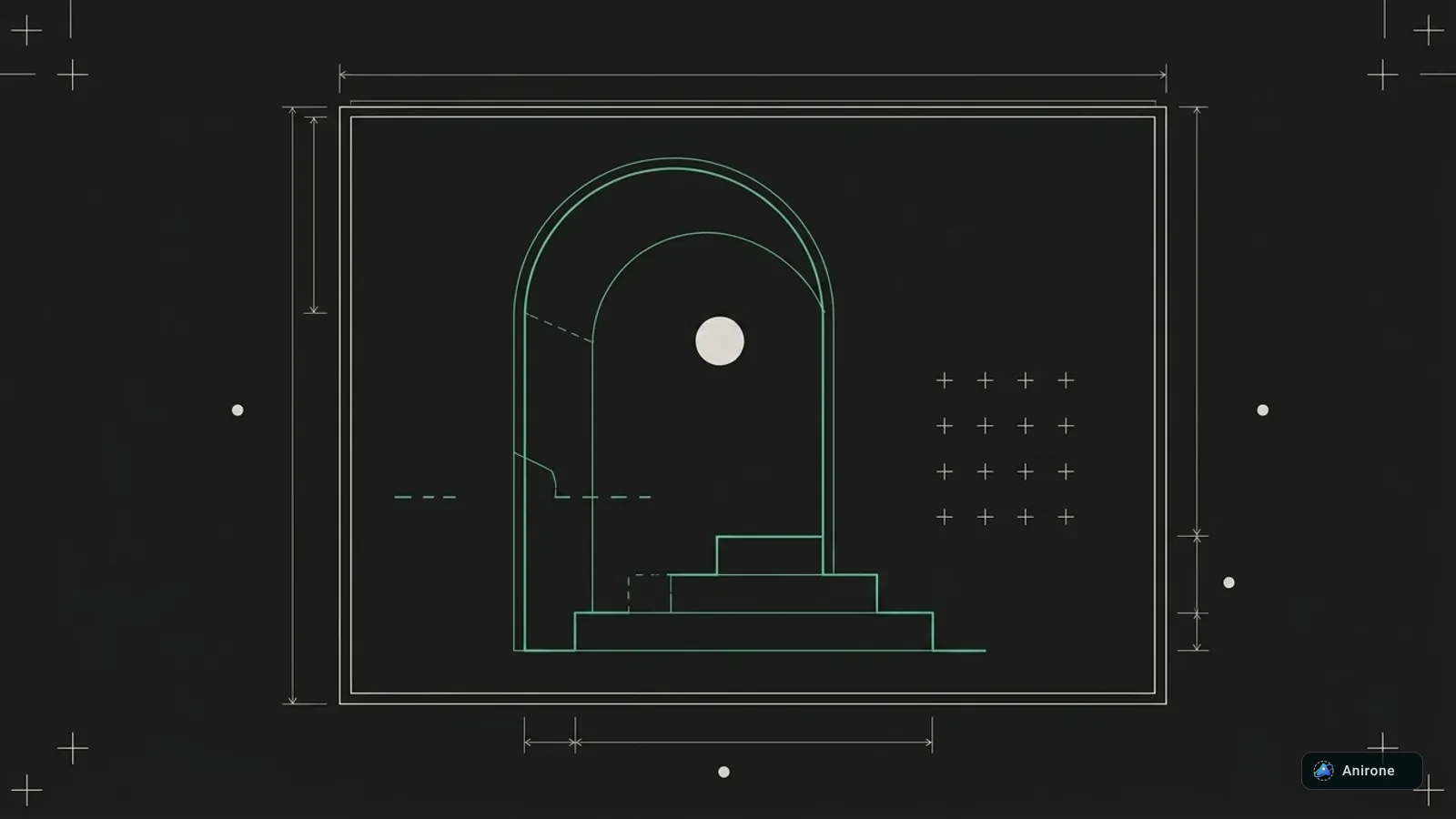
A PDF page carries several rectangles describing its geometry. The MediaBox is the full canvas—the sheet of paper, digitally speaking. The CropBox defines the visible window a reader should display. A non-destructive crop moves that window inward instead of deleting whatever lies outside it.
The distinction matters practically:
- Nothing outside the window is erased. Text objects beyond the border remain in the file, which keeps the operation forgiving—a too-tight crop can simply be redone.
- The view changes, not the content. Your e-reader enlarges what remains visible, which is the entire point: more screen area spent on words, less on margins.
This is also why cropping is safer than re-rendering pages as images to achieve a similar look. Re-rendering bakes decisions into pixels; a CropBox stays an editable instruction. The crop tool in PDF Stage works this way, trimming margins and scanner borders live in the browser without uploading the file anywhere.
Choose boundaries from the document’s worst pages
The most common cropping mistake: setting a tight boundary on a sparse title page, applying it everywhere, and slicing off footnotes forty pages in. Open several pages first and find the extremes:
| PDF type | Safer approach |
|---|---|
| Single-column paper | Trim evenly; preserve footnote depth at page bottoms |
| Scanned book | Remove scanner shadow but retain page numbers if wanted |
| Two-column article | Be conservative—column widths and figures vary |
| Lecture slides | Crop unused frame space only, never diagram edges |
Look specifically for the widest equation, the deepest footnote block, running headers, and figure captions that drift toward edges. Your crop must accommodate the document’s widest moment, not its average one.
Match the crop to the device
Different screens reward different aggressiveness:
E-ink readers. Small displays with limited or no pinch-zoom benefit most from aggressive crops—every reclaimed millimeter becomes larger rendered text. PDFs on these devices do not reflow like native ebooks, so page geometry is all you have. Just leave breathing room: text touching the physical bezel reads worse than slightly small text.
Tablets. Pinch-zoom softens the problem, but a good crop still saves constant zoom gestures. Moderate trimming usually suffices; two-page-spread views of scanned books pair nicely with a center-fold crop.
Phones. Worth cropping, though single-column reading apps sometimes handle reflow themselves. Test in your actual reading app before investing effort.
A careful workflow
- Duplicate the original PDF and set the duplicate aside untouched.
- Set your crop on a representative, content-heavy page.
- Apply it and preview early, middle, and final pages.
- Export a clearly named reading copy—
paper-cropped-tablet.pdf, notfinal2. - Test the copy in the reader app you actually use.
Step 5 catches device-specific surprises: readers that letterbox unexpectedly, or margins that looked generous on a monitor but vanish behind a bezel on the device. This avoids the classic failure—discovering a clipped footnote after the original export has been deleted.
Reading copies versus printing copies
For screens, maximize text area. For printing, resist the urge: paper margins carry punch holes, binding, handwritten notes, and printer hardware limits. Most office printers cannot print edge-to-edge anyway, so a print copy wants modest margins regardless.
Keep them as separate outputs. The original plus two purpose-built exports costs nothing and serves every context. If a print shop needs the uncropped version months later, it still exists.
One caveat from the print side: most current viewers honor CropBox settings, but some older kiosk and print pipelines ignore them or scale pages oddly. Preview before sending anything large, and treat flattening options as a last-resort compatibility move with the usual rasterization trade-offs.
Mixed-size documents and batch sanity
Real documents are rarely uniform. Conference proceedings mix letter and A4 papers; scanned packets change orientation halfway through; slide decks occasionally hide a landscape appendix. Two habits keep crops sane in the messy cases:
- Crop by section, not by document. If pages share dimensions within sections but differ between them, apply separate crop passes per section rather than one boundary everywhere. Most tools let you select page ranges; use them.
- Re-check after rotation. Pages that were rotated for scanning often carry their rotation as metadata, so a crop rectangle defined on the upright view may land differently on the stored page. If early pages look right and later ones drift, rotation is the usual suspect—normalize orientation first, then crop.
A thirty-second flip through the finished copy catches both failure modes. The cost of that flip is trivial next to re-reading a 200-page packet with footnotes amputated from page ninety onward.
When not to crop
Skip aggressive cropping when the document uses marginal comments or annotations living in those margins, equations wider than the text column, bleed images designed to reach page edges, or inconsistent layouts where no single window fits all pages. In those cases, rotate the device, use your reader’s column or reflow mode, or create separate crops per section instead of forcing one boundary onto everything.
Questions people often ask
Does cropping delete my content?
A CropBox-based crop does not—the material remains in the file outside the visible window. Only destructive re-rendering truly discards it. Either way, the untouched original answers all doubts.
Can I undo a crop?
Yes, by resetting the crop window—which is precisely why non-destructive cropping is worth seeking out in a tool.
Why does my cropped PDF show full margins in another app?
That app is ignoring the CropBox and displaying the MediaBox. It is uncommon in current software but explains otherwise mysterious behavior in legacy viewers.
Will cropping improve text sharpness?
Indirectly. The text itself does not change, but the same screen now renders it larger, which reads sharper even though no resolution was added.
Is cropping useful for scanned books?
Enormously. Scanner shadows, skewed borders, and dark edges are exactly the noise a crop removes—and unlike born-digital PDFs, scans have no reflow fallback on e-readers.
The takeaway
Cropping is among the highest-impact, lowest-effort improvements available for small-screen PDF reading: reclaim the margins the page wastes and hand that space back to the text. Work from the document’s densest pages, preview across the whole file, keep the original pristine, and build one named reading copy per device. The result feels less like squeezing a document onto a screen and more like it was designed for one.



Share this article
Link, preview card, or your favorite app
Instagram has no web share link — save the card, copy the caption, post them together.